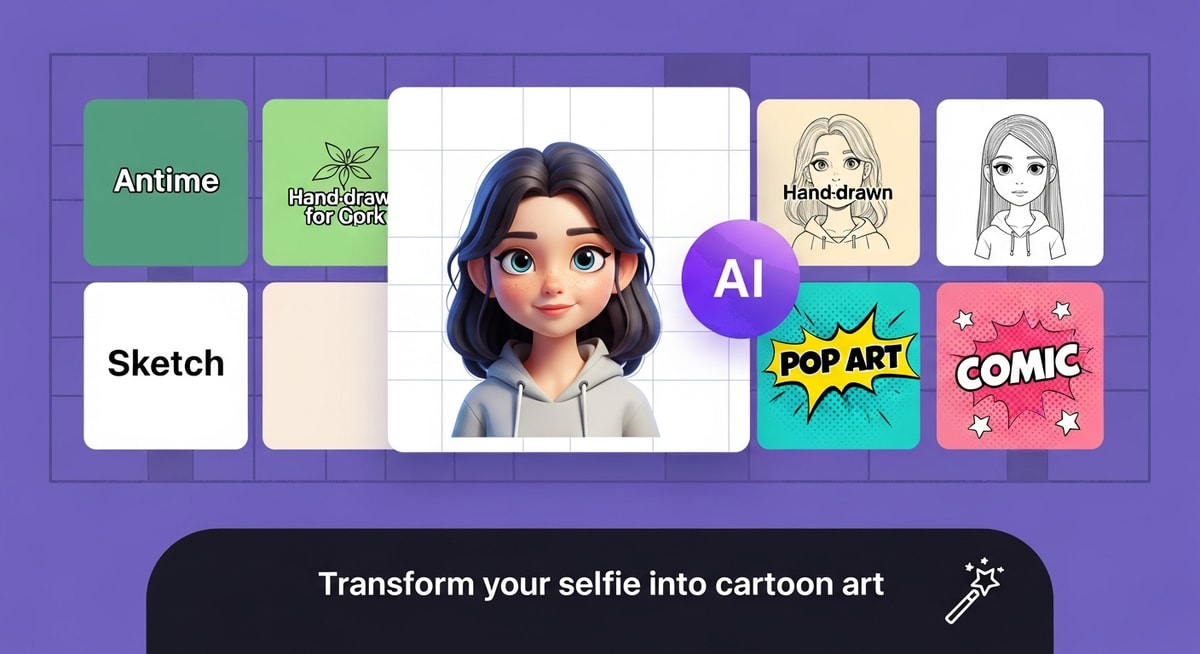
How to Make an AI Cartoon of Yourself: Step-by-Step (2026)
Learning how to make an ai cartoon of yourself has never been easier. Modern AI tools transform your selfies into stunning cartoon characters, anime avatars, and stylized portraits in seconds. This complete guide shows you exactly how to make an ai cartoon of yourself using the best free tools available.
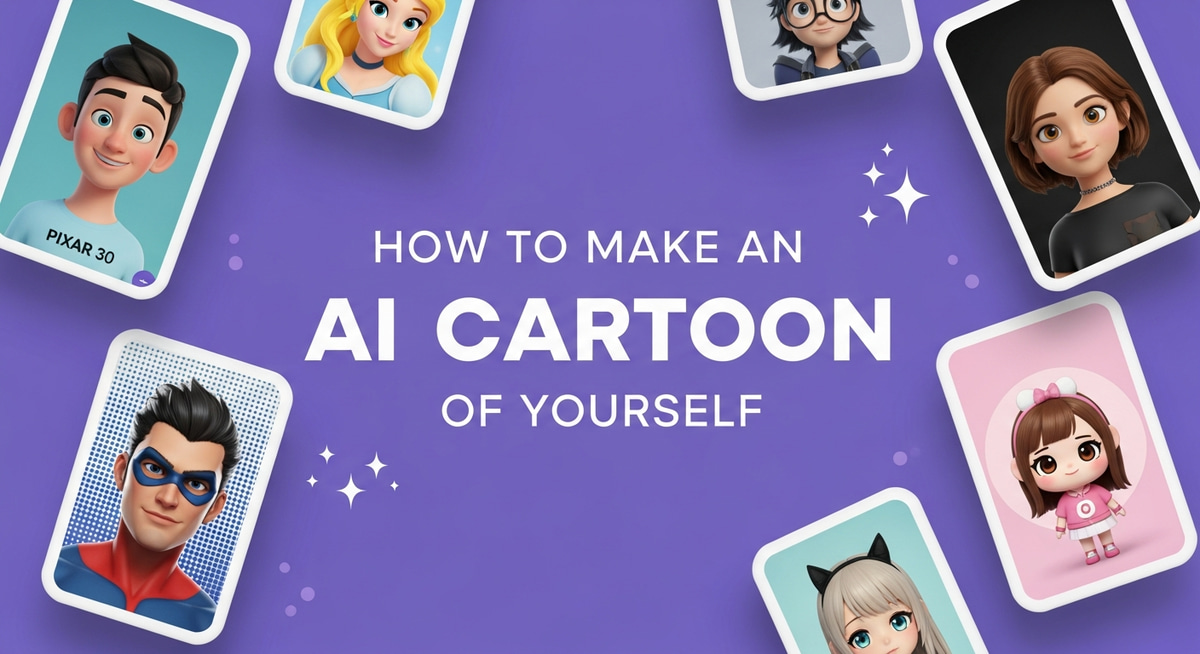
How to Make an AI Cartoon of Yourself: A Step-by-Step Guide
The desire to transform your digital identity into a creative masterpiece has never been higher. Learning how to make an AI cartoon of yourself is no longer just for professional illustrators — it's a way to express your personality across social media, gaming profiles, and messaging platforms. By leveraging advanced AI cartoon generators and cartoon portrait makers, you can turn a standard selfie into a high-quality piece of art in seconds.
The shift toward AI-driven creativity is backed by significant industry growth. As users seek more personalized digital experiences, the demand for accessible AI creative tools continues to skyrocket.
Industry Insights & Data
| Source Name | Published Year | Key Data/Statistic | Report Link |
|---|---|---|---|
| Grand View Research | 2024 | Global AI image generator market size expected to reach $962M by 2030 | View Report |
| Statista | 2025 | 36% of US social media users have used AI to create or edit profile images | View Report |
| The Business Research Company | 2025 | Generative AI in art market projected to reach $2.51B by 2029 (42.0% CAGR) | View Report |
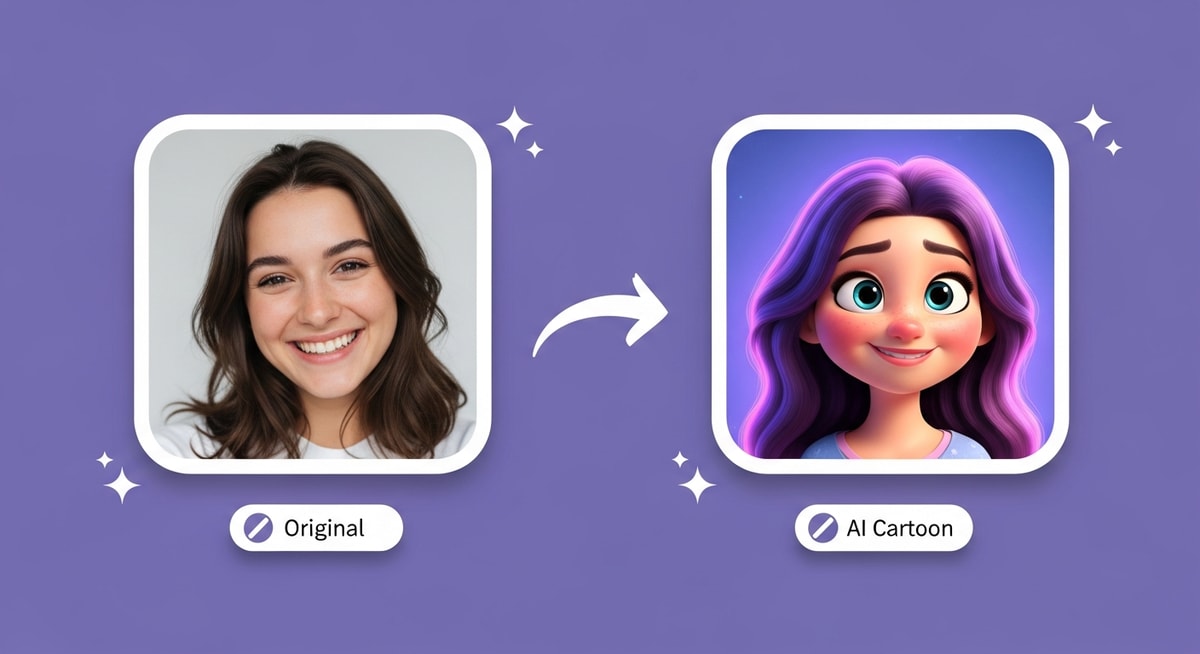

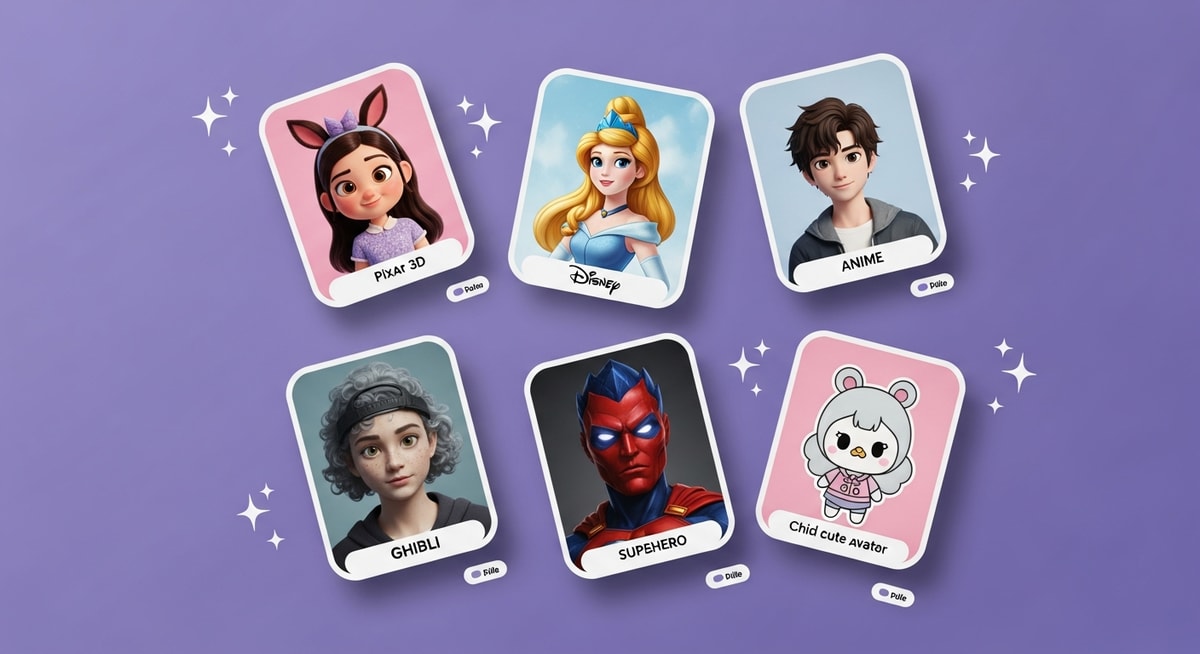
The Tools: Choosing Your AI Cartoon Style
Before you begin, you need the right engine to power your transformation. MyShell AI offers a suite of specialized tools tailored to different aesthetic preferences. Whether you want a cinematic look or a sharp, hand-drawn feel, the platform provides the flexibility needed for high-end results. These AI creative tools handle the complex rendering so you can focus on the vision.
Disney Style Filter — The gold standard for cinematic cartoon transformations. The Disney Style Filter applies the signature Disney/Pixar aesthetic: soft lighting, expressive eyes, and cinematic color grading that makes every portrait look like it belongs on the big screen.
Cartoon Portrait Maker — The most versatile option on the platform. The Cartoon Portrait Maker excels at converting selfies into polished cartoon illustrations — from casual avatars to professional-grade character art.
Powerpuff Girls Filter — Want that iconic "superhero cute" aesthetic? The Powerpuff Girls Filter delivers bold colors, oversized eyes, and the punchy 2D style that defined a generation of cartoon fans.
Ghibli Gram Filter — For fans of Studio Ghibli's dreamy watercolor worlds, the Ghibli Gram Filter captures that soft, hand-painted feel with stunning accuracy — one of MyShell AI's most popular tools.
Zootopia Filter — See yourself as a stylized animal character. The Zootopia Filter transforms you into a fox, bunny, or lion — perfect for playful, anthropomorphic cartoon art.
Star Comic Cartoon — For bold pop-art and comic-book aesthetics, the Star Comic Cartoon turns your photo into striking comic-style artwork with sharp lines and vivid colors.
Each AI cartoon filter uses different neural networks to interpret your facial structure, so experimenting across styles is the fastest way to find your perfect cartoon look.
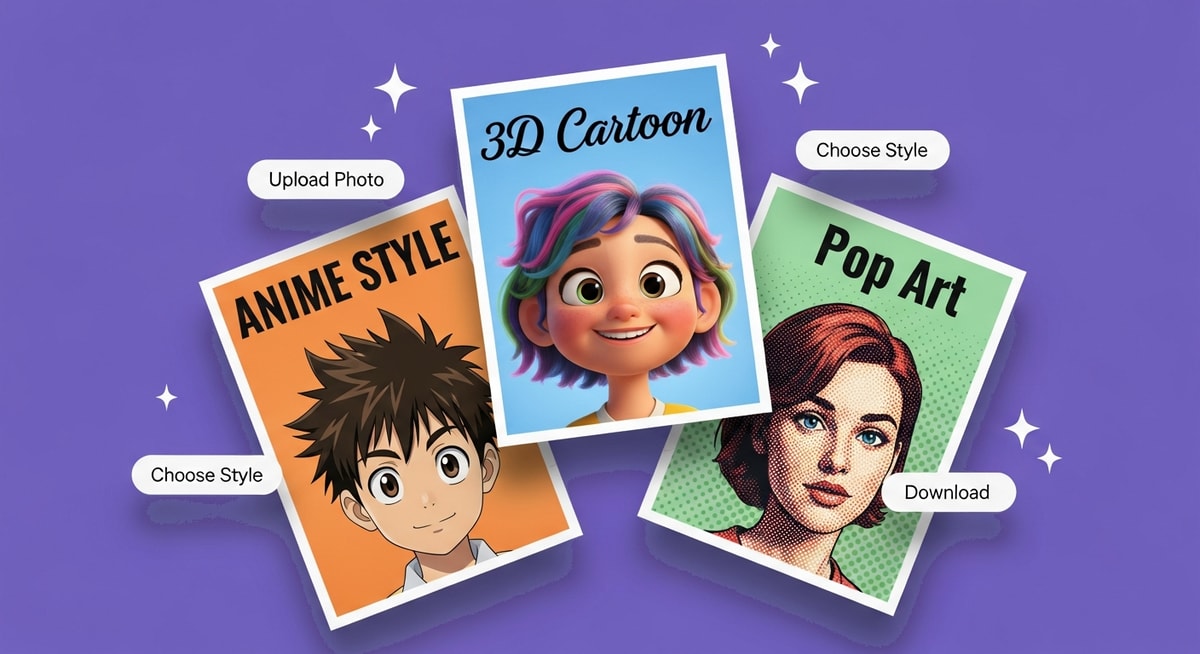
Step-by-Step: How to Make an AI Cartoon of Yourself
Follow this simple process for professional-quality cartoon results — no artistic skill or expensive software required.
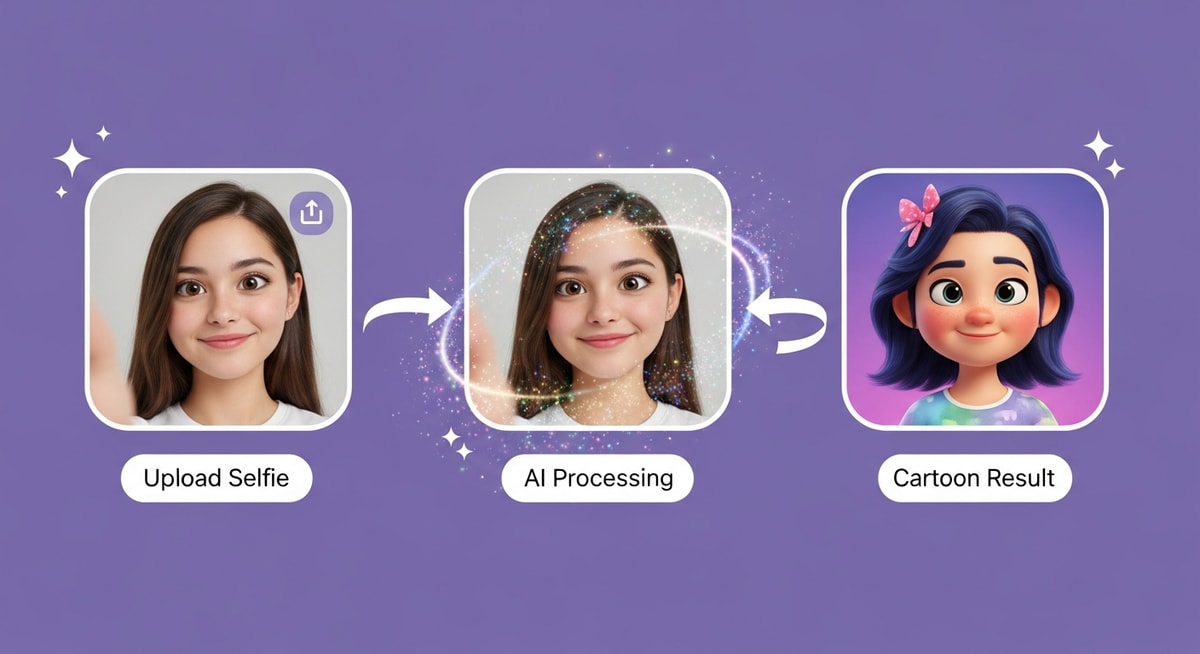
Step 1: Upload Your Reference Photo
The first step in using an AI cartoon generator is selecting a clear, well-lit photo of yourself. For the best results with the Cartoon Portrait Maker or Disney Style Filter, ensure your face is centered and free of obstructions like sunglasses or hats. High-contrast images help the AI identify your facial features more accurately, making the transition to a digital cartoon seamless and recognizable.
Step 2: Select Your Specific Cartoon Style
This is where the magic happens. On MyShell AI, browse multiple cartoon filters to match your vibe:
- Cinematic, big-screen look → Disney Style Filter
- Nostalgic superhero-cute aesthetic → Powerpuff Girls Filter
- Soft, hand-painted anime feel → Ghibli Gram Filter
- Playful animal character → Zootopia Filter
Each filter uses a different neural network, so the same photo will produce dramatically different cartoon styles.
Step 3: Customize with Prompting or Unique Twists
Don't settle for a generic output. Many users love adding a unique flair — such as an anthropomorphic animal version of themselves via the Zootopia Filter, or a bold comic-book twist using the Star Comic Cartoon. You can further refine your AI-generated art by adding text prompts that describe your desired background or outfit, ensuring your custom AI cartoon is truly one-of-a-kind.
Step 4: Render and Download
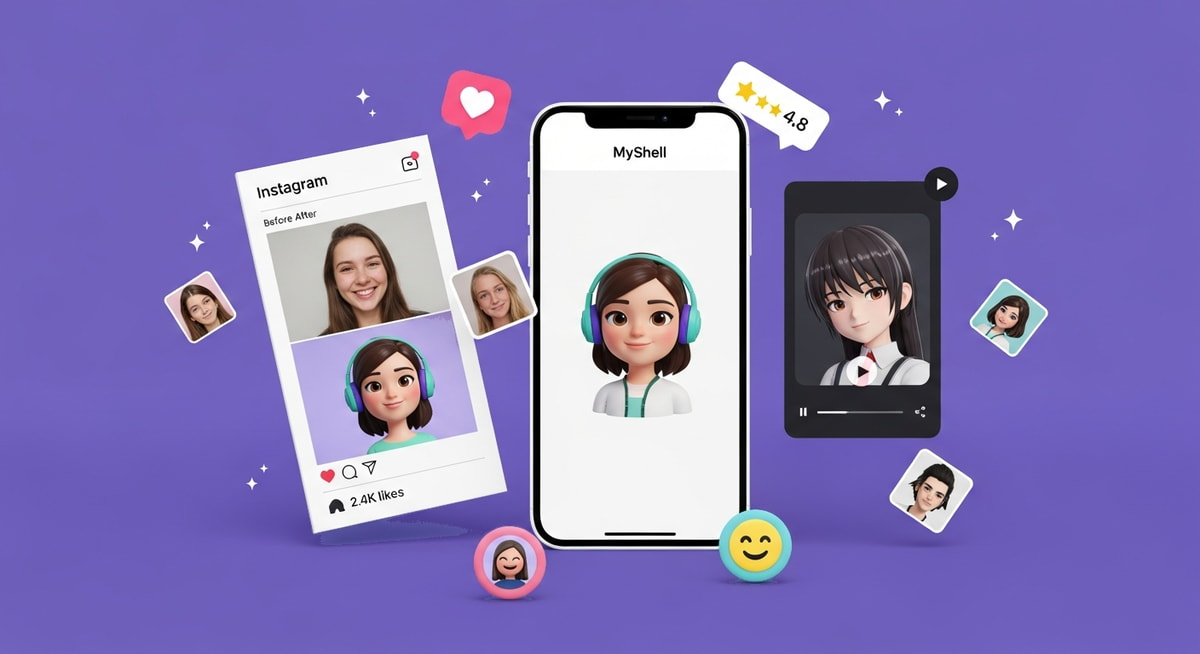
Hit the generate button. Within seconds, the AI cartoon generator will produce your transformed image. Review the results — try the same photo across the Cartoon Portrait Maker and Disney Style Filter to see dramatically different interpretations — then download in high resolution for your profile picture, stickers, or social media posts.
Pro Tips for the Best AI Cartoon Results
Getting a great cartoon from an AI tool is about more than just uploading a random photo. These expert tips will dramatically improve your output quality.
Match Your Lighting to the Style
Each cartoon filter responds differently to lighting. The Powerpuff Girls Filter works best with bright, flat, even lighting — mimicking the 2D cartoon's original look. The Disney Style Filter shines with soft, directional light that creates natural shadows, just like a Pixar scene. The Ghibli Gram Filter produces best results with warm, golden-hour lighting that complements the watercolor aesthetic.
Use Front-Facing Photos
Frontal poses produce significantly sharper cartoon transformations than angled shots. The AI maps your facial structure more accurately when both eyes, nose, and mouth are fully visible — especially important for the Cartoon Portrait Maker.
Avoid Heavy Filters on Your Source Photo
Pre-existing Instagram filters, heavy makeup edits, or beauty mode can confuse the AI's feature detection. Use a clean, unfiltered photo for the most expressive cartoon results.
Try Multiple Tools on the Same Photo
The same selfie will look wildly different through the Disney Style Filter vs. the Zootopia Filter vs. the Star Comic Cartoon. Experimenting across tools is the fastest way to discover your ideal cartoon style — and it's free to try them all.
Expert Advice: To get the most out of an AI cartoon tool, avoid photos with heavy filters or sunglasses. If your first result isn't perfect, try adjusting your photo angle or lighting before switching tools. The Powerpuff Girls Filter works best with bright, flat lighting to mimic the 2D style, while the Ghibli Gram Filter rewards soft natural light.
Start Creating Your AI Cartoon Today
Mastering how to make an AI cartoon of yourself is the easiest way to refresh your online presence and stand out on social media. From the cinematic charm of the Disney Style Filter to the expressive depth of the Cartoon Portrait Maker, the dreamy watercolors of the Ghibli Gram Filter, and the playful animal transformations of the Zootopia Filter — MyShell AI provides all the tools you need to bring your cartoon vision to life.
Download MyShell AI and create your first cartoon masterpiece in under 30 seconds — start with the Cartoon Portrait Maker for the most versatile results.
Frequently Asked Questions
Q: What is the best tool for making an AI cartoon of yourself?
A: The Cartoon Portrait Maker on MyShell AI is the most versatile option, handling everything from casual cartoon avatars to professional character art. For specific styles, use the Disney Style Filter for Pixar-style cartoons or the Ghibli Gram Filter for anime watercolor aesthetics.
Q: Can I use these AI cartoons for commercial use?
A: Most MyShell AI creations are perfect for personal branding, social media profiles, and content creation. Always check the platform's terms of service for specific commercial use cases.
Q: How do I make my cartoon look like a specific movie style?
A: Use dedicated filters designed to match specific franchises. The Disney Style Filter captures Disney/Pixar aesthetics, the Zootopia Filter matches the Zootopia animal-character style, and the Powerpuff Girls Filter replicates the iconic Cartoon Network look.
Q: What kind of photo works best for AI cartoon generation?
A: A clear, well-lit, front-facing photo without sunglasses or heavy filters produces the best results. High-contrast images with visible facial features allow the AI to create the most accurate and expressive cartoon transformations.
Q: Is it free to make AI cartoons on MyShell?
A: Yes. MyShell AI provides free access to all cartoon generators including the Cartoon Portrait Maker, Disney Style Filter, Ghibli Gram Filter, and all other filters — with no watermarks.